
GTA 6 Twitch Overlay - Stream Overlays & OBS Scenes
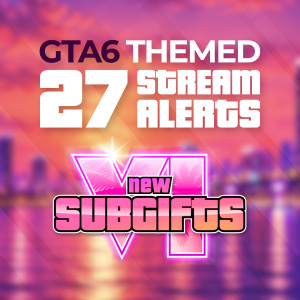
Take your streams to the streets of Vice City with this GTA 6 Twitch Overlay Pack, designed for streamers who want a bold, immersive Grand Theft Auto VI aesthetic. Featuring 8 ready-to-use OBS scenes, including intro, pause, outro, offline, and gameplay screens, plus 3 Just Chatting scenes for chatting, browsing, and gaming, this pack gives your stream a consistent look inspired by the world of GTA 6.
Complete your setup with matching Twitch panels, banners, and customizable offline screens. Easy to install and designed for OBS Studio, this GTA 6 stream overlay pack brings the Vice City atmosphere to your channel.
Price :
25€
Pack content :
- .json files that automatically install all scenes in OBS Studio
- 6 MP4 videos: Intro, Pause & Outro (3 in English & 3 in French)
- 22 Twitch panels in 6 gradient colors (132 panels total)
- Twitch banners in 9 background colors
- Offline screen (Customisable colors)
- PDF installation & customization guide
GTA 6 Just Chatting Overlay for Twitch & OBS Studio
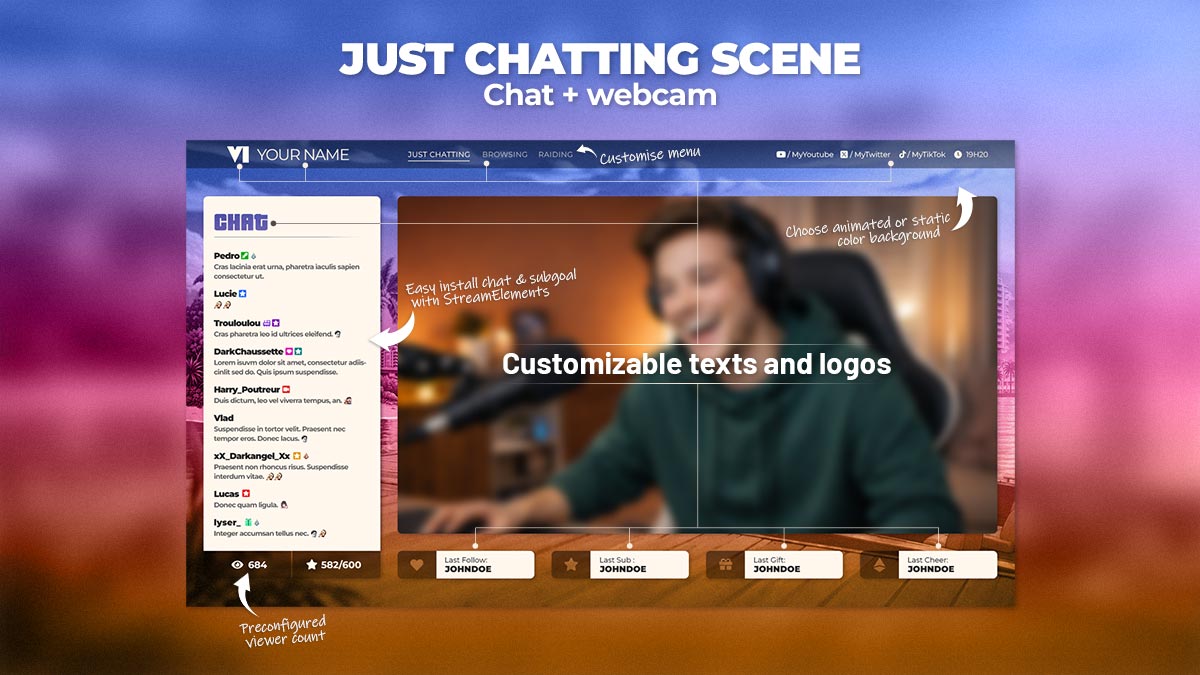
The GTA 6 Just Chatting overlay for Twitch and OBS Studio is perfect for streamers who want to bring the vibrant Vice City atmosphere to their live streams. Featuring a GTA 6-inspired design, this customizable stream overlay combines style and functionality for engaging Just Chatting sessions.
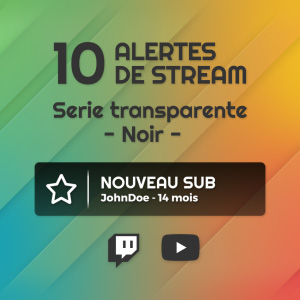
The scene includes a dedicated webcam frame, a StreamElements chat overlay, and customizable stream event displays for your latest followers, subscribers, donations, bits, and sub goals.
Whether you're chatting with your community, hosting Q&A sessions, or sharing your thoughts before jumping into Grand Theft Auto VI gameplay, this GTA 6 stream overlay for OBS provides a polished, immersive streaming setup inspired by Vice City.
GTA 6 Browsing Scene – Webcam, Chat & Browser Overlay for OBS Studio
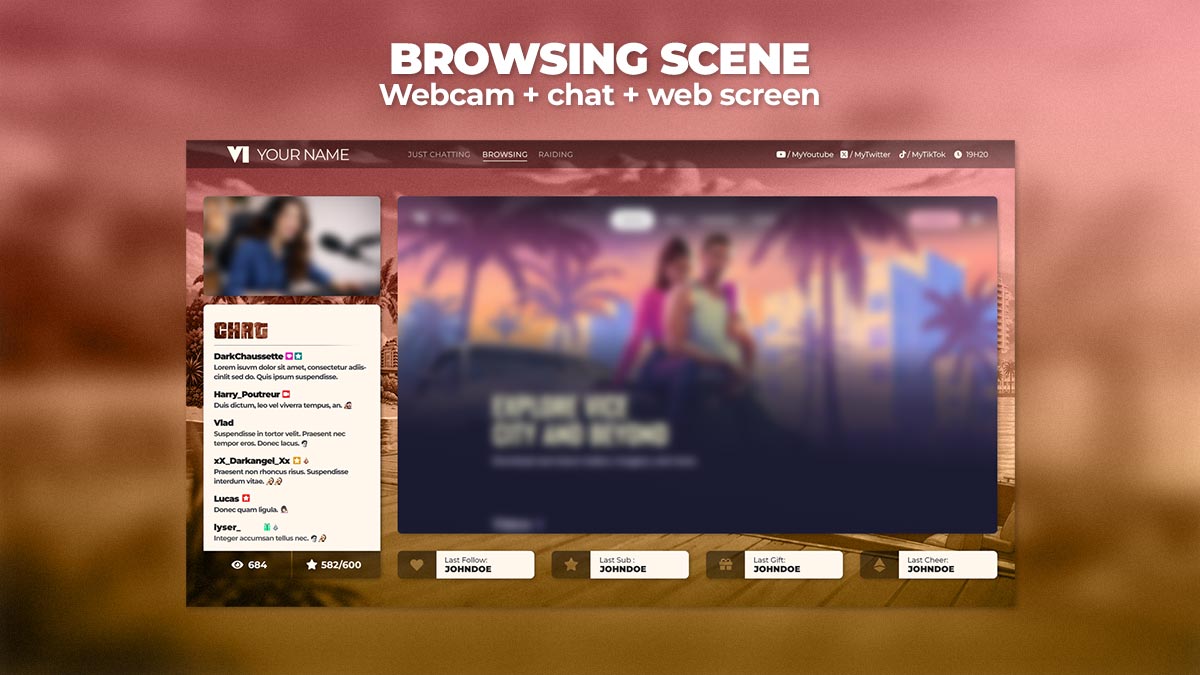
The GTA 6 Browsing scene for OBS Studio lets you display any website, online store, video platform or web page directly on your stream while keeping your webcam, StreamElements chat and stream events visible. Featuring a Vice City-inspired design, this GTA 6 Twitch overlay combines browsing functionality with a vibrant streaming aesthetic.
This customizable Twitch browsing overlay is ideal for browsing sessions, live shopping, community reviews and discovery streams. With a dedicated browser area, webcam frame, chat panel and stream event displays, it provides a clean and immersive layout to keep your audience engaged while you explore the web live.
GTA 6 In-Game Overlay – Gameplay, Webcam & Chat for OBS Studio
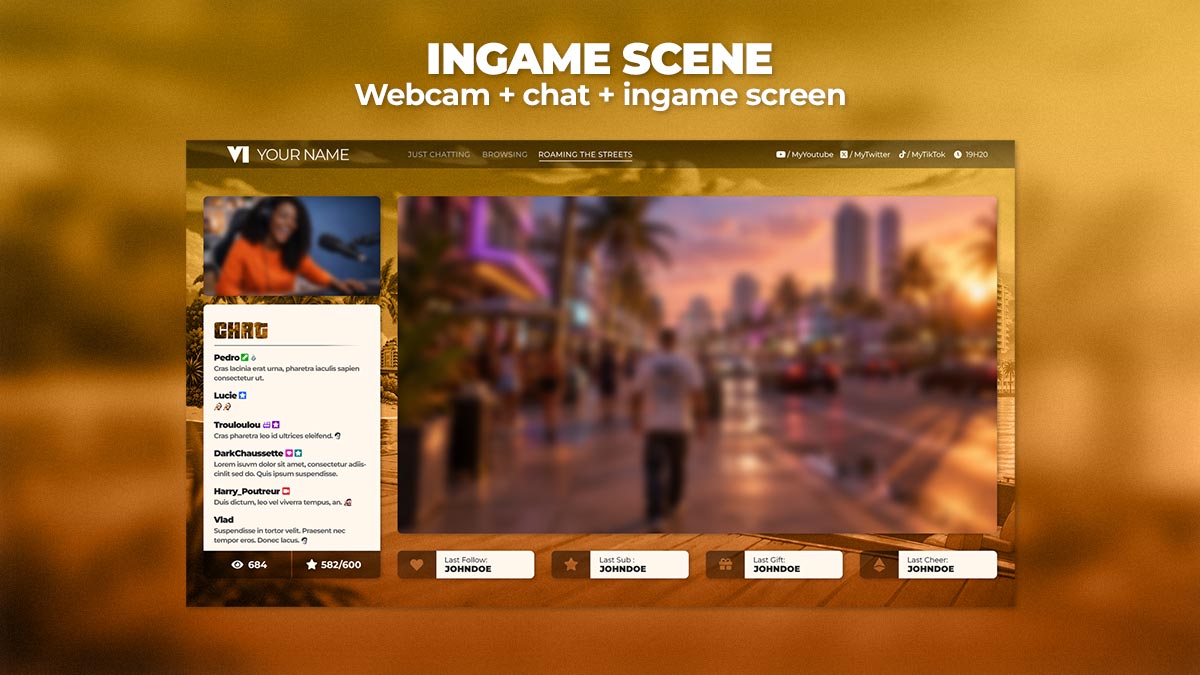
The GTA 6 In-Game overlay for OBS Studio is designed to showcase your gameplay while keeping your webcam, StreamElements chat and stream events neatly integrated into your stream layout. Featuring a Vice City-inspired design, this customizable GTA 6 stream overlay brings a distinctive look to your live broadcasts while keeping your community engaged.
Customize the background color to match your preferred style and personalize your streaming layout to suit your channel. With a dedicated gameplay area, webcam frame, chat panel and stream event widgets, this GTA 6 Twitch overlay provides a clean, organized and professional setup for your Grand Theft Auto VI streams.
GTA 6 Twitch Chat Overlay – Custom Chat Positions & Colors for OBS Studio
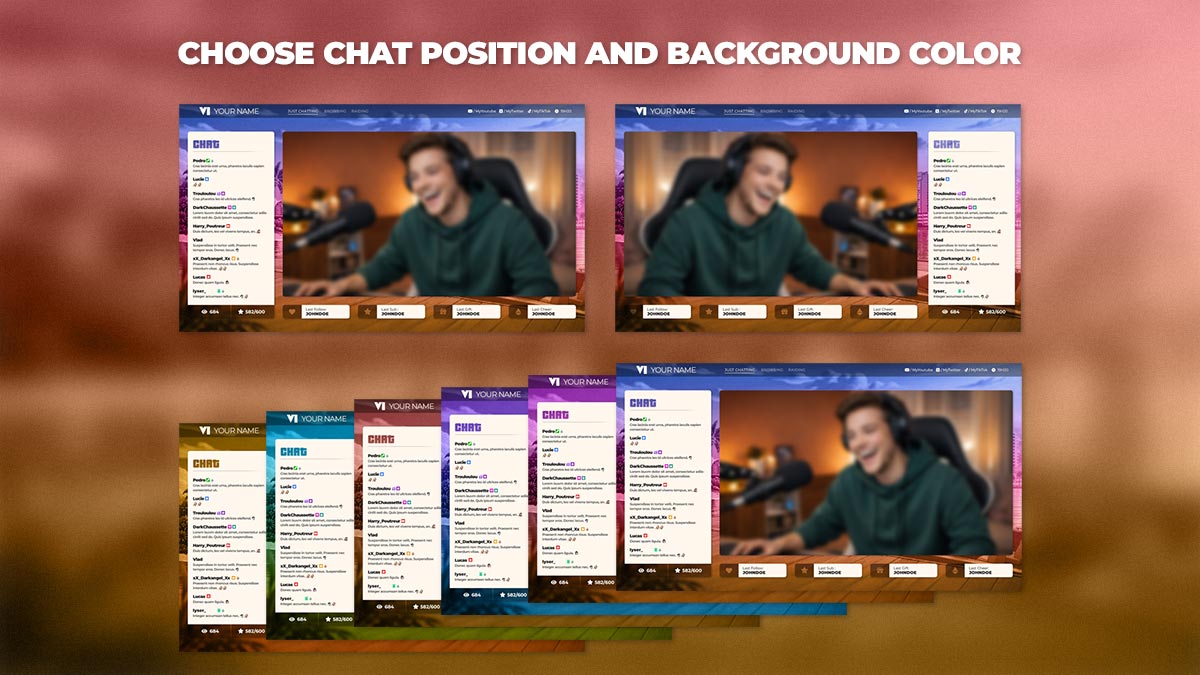
This GTA 6 chat overlay for OBS Studio lets you choose between two complete stream layouts: chat on the left or chat on the right. Simply select the corresponding JSON file during installation to apply your preferred chat position across all included scenes.
Multiple background color variations are also available, allowing you to customize your GTA 6 Twitch overlay to match your preferred style. Each layout keeps your chat, webcam and stream elements consistently positioned throughout your scenes.
The result is a cohesive and customizable GTA 6 stream overlay with a Vice City-inspired design, giving your Twitch channel a polished look across your Just Chatting, Browsing and Gaming scenes.
GTA 6 Animated Stream Screens – Starting Soon, BRB & Ending Screens
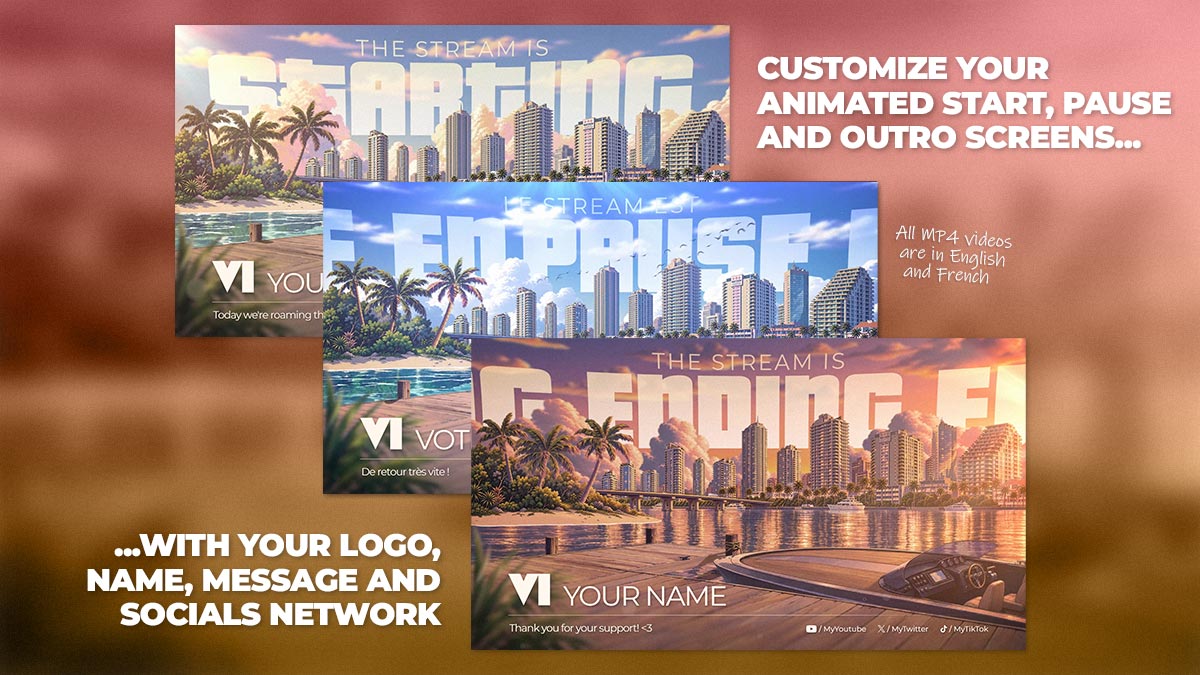
These GTA 6 animated stream screens bring the vibrant Vice City atmosphere to your Twitch channel, with matching Starting Soon, BRB (Be Right Back) and Stream Ending screens designed for OBS Studio. Inspired by the world of Grand Theft Auto VI, each screen helps create a consistent visual identity throughout your broadcast.
All 6 MP4 videos are included in English and French, with animated backgrounds inspired by the GTA 6 aesthetic. Customize them with your own logo, streamer name, message and social media links to create a personalized look for your channel.
Whether you're preparing your stream, taking a short break or ending your broadcast, these GTA 6 stream overlays give your channel a polished, cohesive look from beginning to end.
GTA 6 Offline Screen Generator – Custom Twitch Offline Screens for OBS Studio
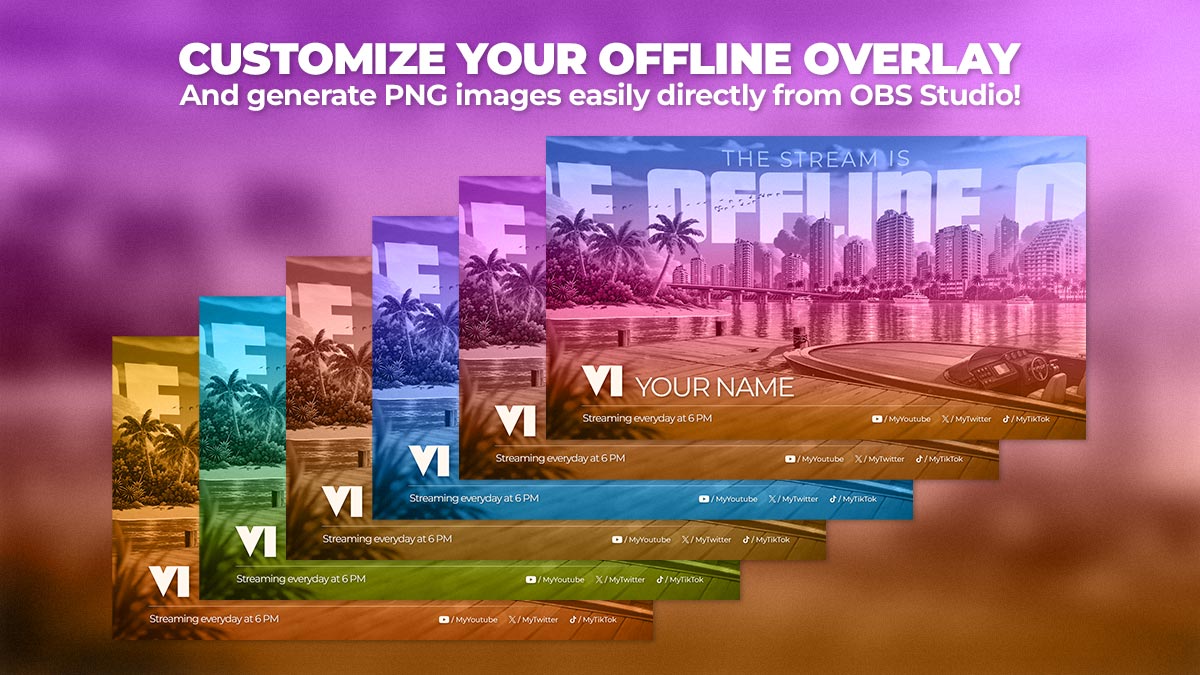
This GTA 6 offline screen generator for OBS Studio lets you create your own custom offline stream screens featuring a vibrant Vice City-inspired design. Easily personalize your GTA 6 Twitch offline screen to keep your channel looking consistent even when you're not live.
Using the preconfigured OBS scene, you can customize your logo, streamer name, message and social media links, then export clean, high-quality PNG images directly from OBS Studio. No external graphic design software is required.
Available in multiple customizable background colors, these GTA 6 offline screens let you create a personalized look for Twitch, YouTube, Kick and other streaming platforms. Keep your channel branding consistent with a GTA 6-inspired offline screen that matches the rest of your stream overlay pack.
GTA 6 Twitch Panels – Customizable Stream Profile Panels
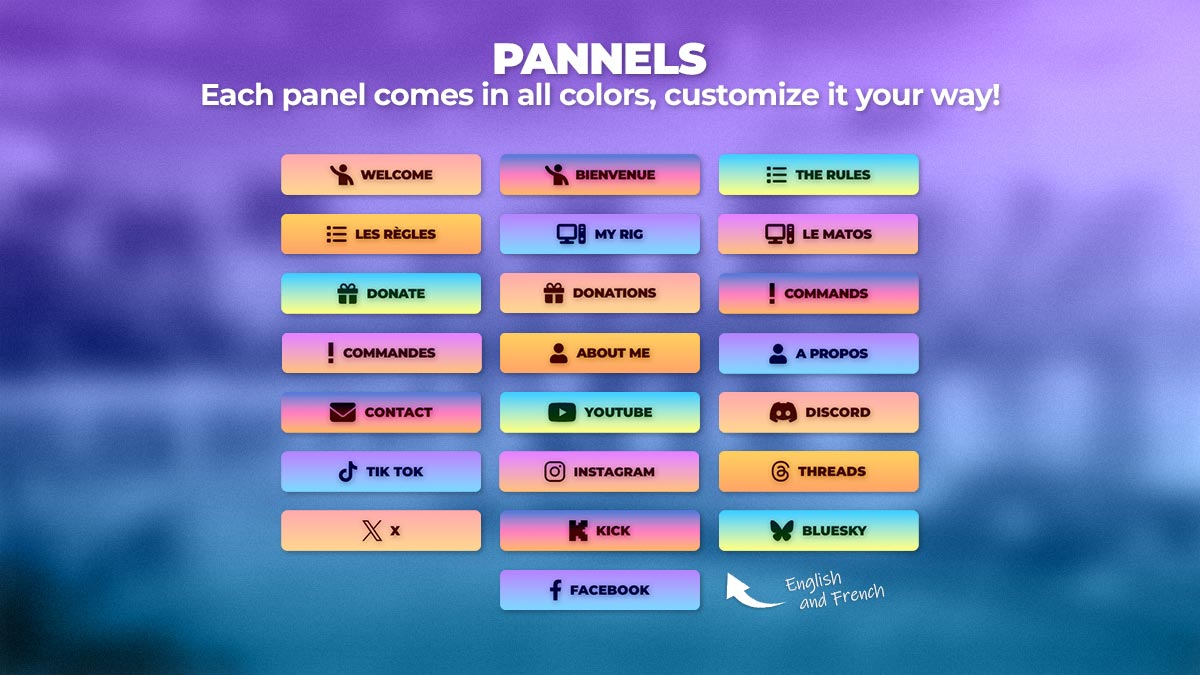
These GTA 6 Twitch panels are designed to give your channel a consistent Vice City-inspired look. Provided as ready-to-use PNG images, they make it easy to create a clean, organized and visually appealing Twitch profile that matches your GTA 6 stream overlay.
The pack includes 22 Twitch panel designs in 6 gradient color variations, giving you 132 panels in total. Available in English and French, the panels cover essential sections such as About Me, Rules, Donations, Commands, Setup and social media links, helping you organize your channel information while keeping your profile visually consistent.
Simply upload the panels to your Twitch channel to complete your GTA 6 streaming setup with matching profile graphics inspired by the world of Grand Theft Auto VI.
GTA 6 Twitch Banners – Custom Channel Backgrounds
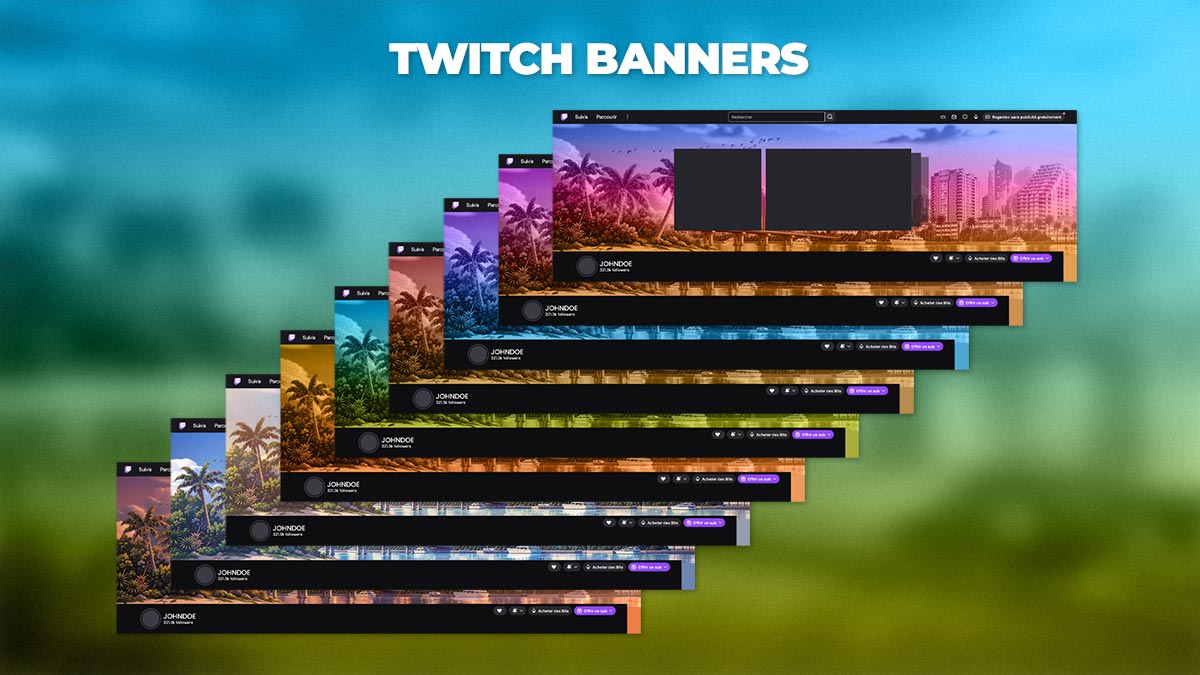
These GTA 6 Twitch banners give your channel a distinctive Vice City-inspired look, with colorful backgrounds featuring the atmosphere of Grand Theft Auto VI. Designed to complement your GTA 6 stream overlay, these banners help create a consistent visual identity across your Twitch channel.
The pack includes Twitch profile banners in 9 different background color variations, making it easy to choose a style that matches your stream branding. Featuring a vibrant Vice City-inspired sunset, palm trees and a city skyline, each banner adds a recognizable GTA 6 aesthetic to your channel.
Simply upload your preferred banner to Twitch to complete your GTA 6 channel branding with matching graphics that stand out while keeping your profile clean and professional.
GTA 6 OBS Studio Scenes – Automatic Installation via JSON File
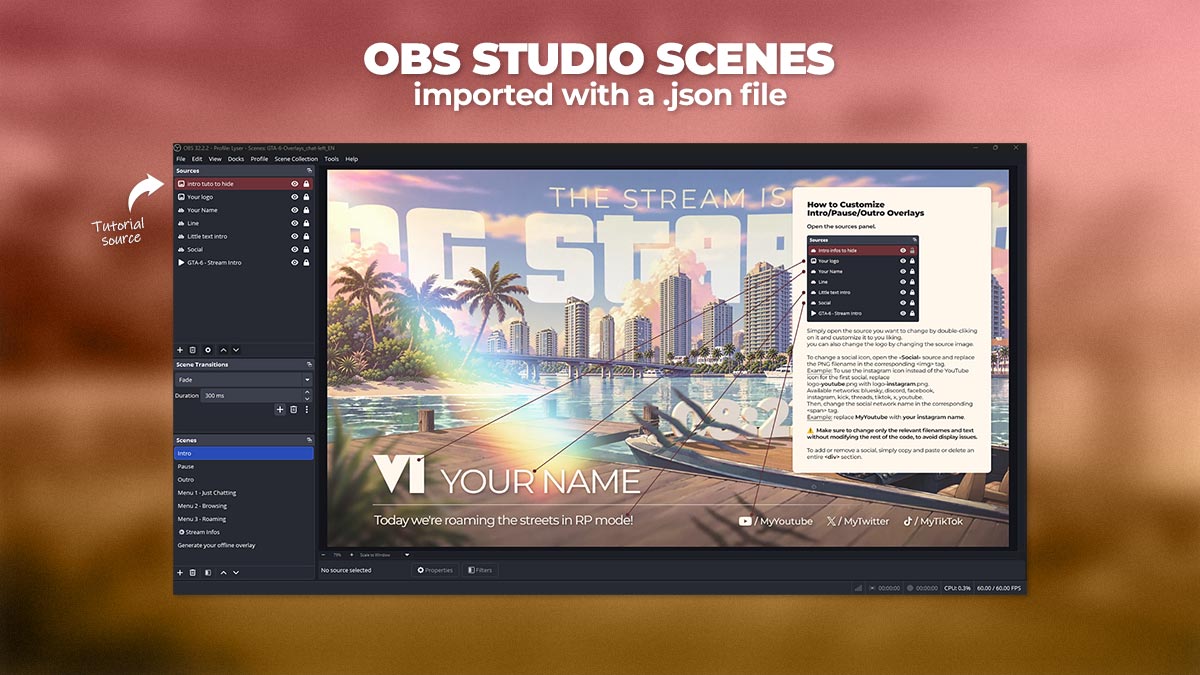
The GTA 6 OBS Studio scene collection comes as a ready-to-use JSON file, allowing you to import your stream overlay scenes into OBS Studio in just a few clicks.
Once imported, all 8 preconfigured OBS scenes are added to your setup, including Intro, Pause, Outro, Just Chatting, Browsing, In-Game and Offline screens. Each scene comes with its visual elements already positioned, making it easy to get your GTA 6 stream ready without building your layout from scratch.
Simply customize your streamer name, logo, social media links and text to make the overlay your own. With a straightforward, beginner-friendly installation process, this GTA 6 stream overlay pack for OBS Studio helps you maintain a consistent Vice City-inspired look across your entire stream.
GTA 6 OBS Studio Installation Guide – Step-by-Step PDF Tutorial
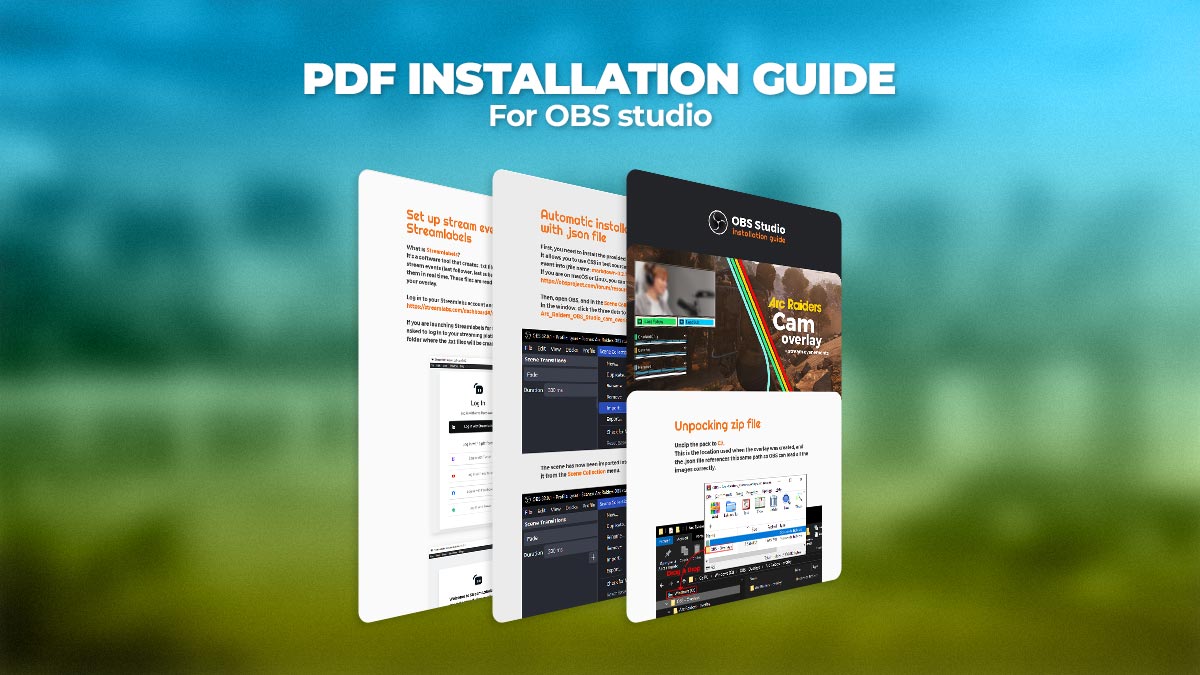
A step-by-step PDF installation guide is included to help you set up your GTA 6 stream overlay pack in OBS Studio quickly and easily.
The guide explains how to import the JSON scene collection, integrate your chat and configure your sub goal. For further customization, helpful tutorial images are built directly into the OBS scenes as dedicated sources highlighted in red. Simply enable these sources in the Sources panel to display visual instructions while editing your overlays, then hide them again when you're done.
Designed for both beginners and experienced streamers, this combination of installation instructions and built-in visual customization tips makes setting up and personalizing your GTA 6 OBS overlay straightforward.
Fast install
1. Download and extract the files
Download the GTA 6 overlay ZIP file using the download link provided in the PDF installation guide, then extract it directly to the root of your C: drive.
Do not create any additional folders: the OBS-Overlays folder must be located directly in C:\.
Here's a short installation video. The game is different, but the installation process is the same:
If you're not using Windows, you can extract the files wherever you like. When importing the .json file into OBS Studio, you'll need to specify the location of the Sources folder, which contains all the images and videos.
2. Install the required dependencies
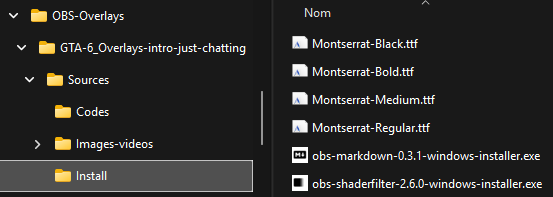
Open the Install folder inside your extracted GTA 6 overlay pack to find the required installers.
Install the four included Montserrat fonts (Black, Bold, Medium and Regular).
The installers for OBS Markdown and OBS Shaderfilter are also located in the Install folder. Check the PDF installation guide for the official download links and make sure you're using the latest versions of both extensions before installing them.
Make sure all fonts and both extensions are installed before importing your GTA 6 overlay scenes.
3. Import your scenes
Open OBS Studio and import the .Json file matching your preferred language (English or French) and chat position (left or right).
4. Customize your overlay
Your scenes are ready to use!
To integrate your Twitch chat, follow the instructions in the included PDF guide. You can also enable the red tutorial sources directly in OBS Studio for additional customization tips.
Ce site est protégé par reCAPTCHA. Les règles de confidentialité et les conditions d'utilisation de Google s'appliquent.
Réalisé par